How to Test Mouse Buttons Online
Mouse buttons are one of the most important parts of any computer mouse. Whether you use your mouse for gaming, office work, graphic design, or everyday browsing, properly functioning mouse buttons are essential for productivity.
Over time, mouse buttons can develop issues such as missed clicks, double-clicking, delayed responses, or complete failure. Fortunately, you can quickly identify these problems using a Mouse Tester.
In this guide, you will learn how to test mouse buttons online, why button testing is important, common mouse button issues, and how to determine whether your mouse needs repair or replacement.
What Is a Mouse Button Test?
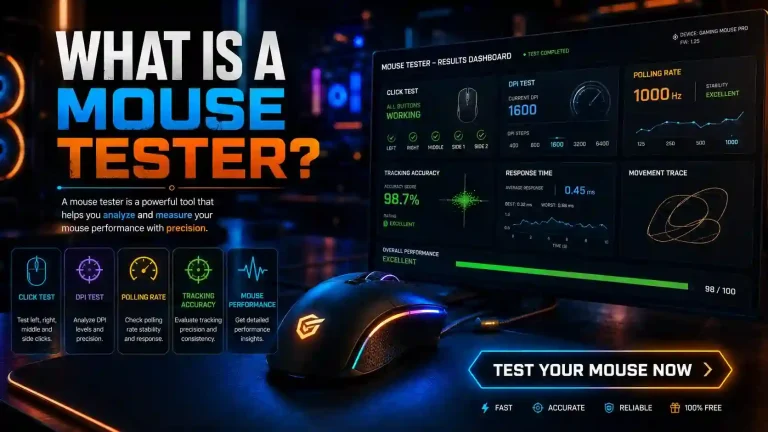
A mouse button test is a process that checks whether each button on your mouse is working correctly.
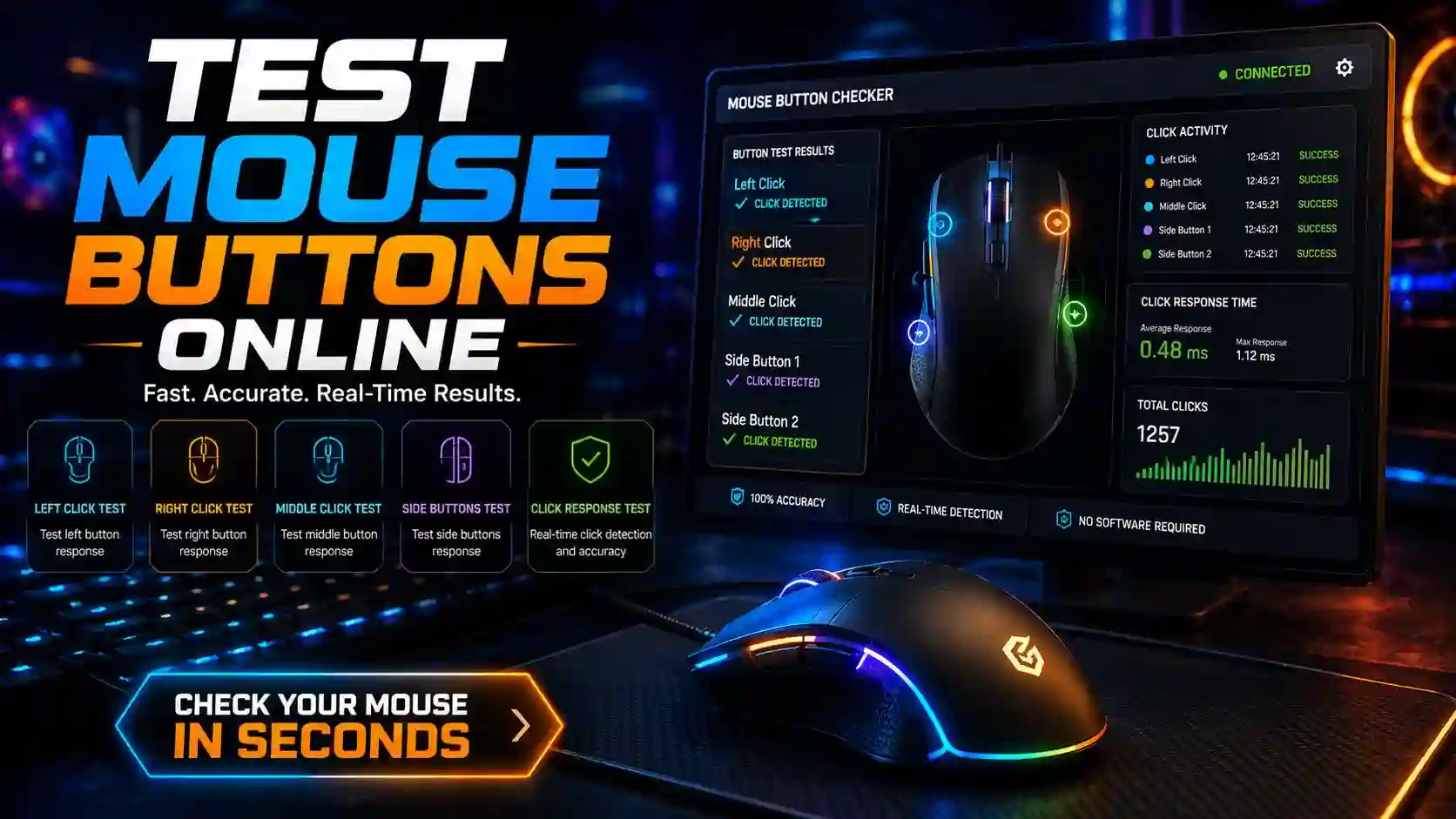
A Mouse Tester can detect:
- Left mouse button clicks
- Right mouse button clicks
- Middle mouse button clicks
- Side buttons
- Additional programmable buttons
The tool records every click and displays the results instantly.
Why Should You Test Mouse Buttons?
Mouse button issues can affect your daily tasks and gaming performance.
Testing your mouse buttons can help you:
- Detect faulty switches
- Identify double-click problems
- Verify click registration
- Check button responsiveness
- Troubleshoot hardware issues
Common Mouse Button Problems
The following table shows common mouse button issues and their possible causes.
| Problem | Possible Cause |
|---|---|
| Double Clicking | Worn-out mouse switch |
| Missed Clicks | Dirty internal contacts |
| Delayed Clicks | Driver issues |
| Unresponsive Button | Hardware failure |
| Random Clicks | Damaged switch mechanism |
Understanding these issues helps determine whether the problem is software-related or hardware-related.
How to Test Mouse Buttons Online
Testing your mouse buttons is simple and usually takes less than a minute.
Step 1: Open a Mouse Tester
Launch your Mouse Tester tool in a web browser.
The testing area will display all supported mouse buttons.
Step 2: Test the Left Mouse Button
Click the left mouse button several times.
Check whether:
- Every click is registered
- Clicks appear instantly
- No double clicks occur
The left button is the most frequently used mouse button and often experiences wear first.
Step 3: Test the Right Mouse Button
Next, click the right mouse button.
Verify that:
- Every click registers correctly
- No delayed responses occur
- Context menu actions function normally
A faulty right-click button can significantly affect productivity.
Step 4: Test the Middle Mouse Button
Press the scroll wheel.
Many users forget to test the middle mouse button, but it is important for:
- Browser tab management
- Gaming controls
- Productivity shortcuts
Ensure every press is detected.
Step 5: Test Side Buttons
If your mouse includes side buttons:
- Press each side button
- Verify registration
- Check responsiveness
Gaming mice commonly feature additional programmable buttons.
Step 6: Review Results
Most Mouse Tester tools provide instant feedback.
Look for:
- Missing clicks
- Duplicate clicks
- Delayed responses
- Inconsistent behavior
These signs may indicate hardware problems.
Mouse Button Testing Results Explained
The following table explains common test outcomes.
| Test Result | Meaning |
|---|---|
| Every Click Registers | Mouse is functioning properly |
| Missing Clicks | Switch may be damaged |
| Double Clicks | Switch wear is likely |
| Delayed Registration | Driver or hardware issue |
| No Response | Button failure |
Understanding these results helps diagnose mouse problems quickly.
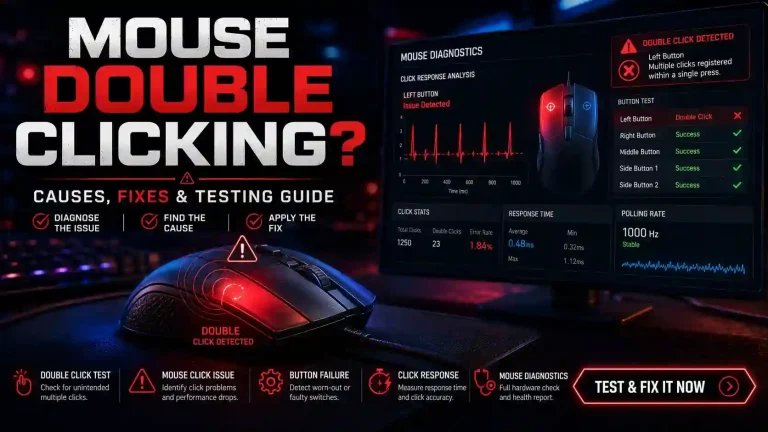
How to Detect Double Click Issues
Double-click problems are among the most common mouse defects.
Symptoms
- One click registers twice
- Files open unexpectedly
- Drag-and-drop actions fail
- Gaming actions trigger multiple times
Testing Procedure
Click slowly several times.
If the Mouse Tester records more clicks than you perform, your mouse may have a double-click issue.
Why Mouse Buttons Stop Working
Several factors can cause mouse button failures.
Physical Wear
Mouse switches wear out after thousands or millions of clicks.
Dust and Dirt
Debris inside the mouse can interfere with switch operation.
Moisture Damage
Liquid exposure can damage internal components.
Driver Problems
Outdated drivers may cause inconsistent behavior.
Manufacturing Defects
Some low-quality mice develop switch issues prematurely.
Mouse Button Testing for Gamers
Gamers depend heavily on precise button inputs.
A Mouse Tester can help verify:
- Click accuracy
- Input consistency
- Button responsiveness
- Competitive gaming performance
Even a slight button issue can affect gameplay.
How Often Should You Test Mouse Buttons?
Consider testing your mouse when:
Regular testing helps identify problems before they become severe.
Benefits of Using an Online Mouse Tester
No Installation Required
Everything works directly in your browser.
Free Access
Most Mouse Tester tools are completely free.
Fast Results
Testing takes only a few minutes.
Accurate Detection
The tool identifies button issues quickly.
Easy to Use
No technical expertise is required.
Frequently Asked Questions
Conclusion
Testing mouse buttons online is one of the fastest ways to identify mouse problems. Whether you are troubleshooting double-click issues, checking button responsiveness, or verifying gaming performance, a Mouse Tester provides quick and reliable results.
By regularly testing your mouse buttons, you can detect hardware problems early, improve productivity, and ensure a smoother computing experience.