A mouse that double clicks unexpectedly can be frustrating. Whether you are working on important documents, browsing the web, or playing competitive games, accidental double clicks can disrupt your workflow and reduce productivity.
This issue is one of the most common mouse problems faced by users worldwide. Fortunately, there are several ways to identify the cause and fix the problem.
In this guide, you will learn why your mouse is double clicking, how to test for double-click issues, and the best solutions to restore normal mouse performance.
What Is a Mouse Double Click Problem?
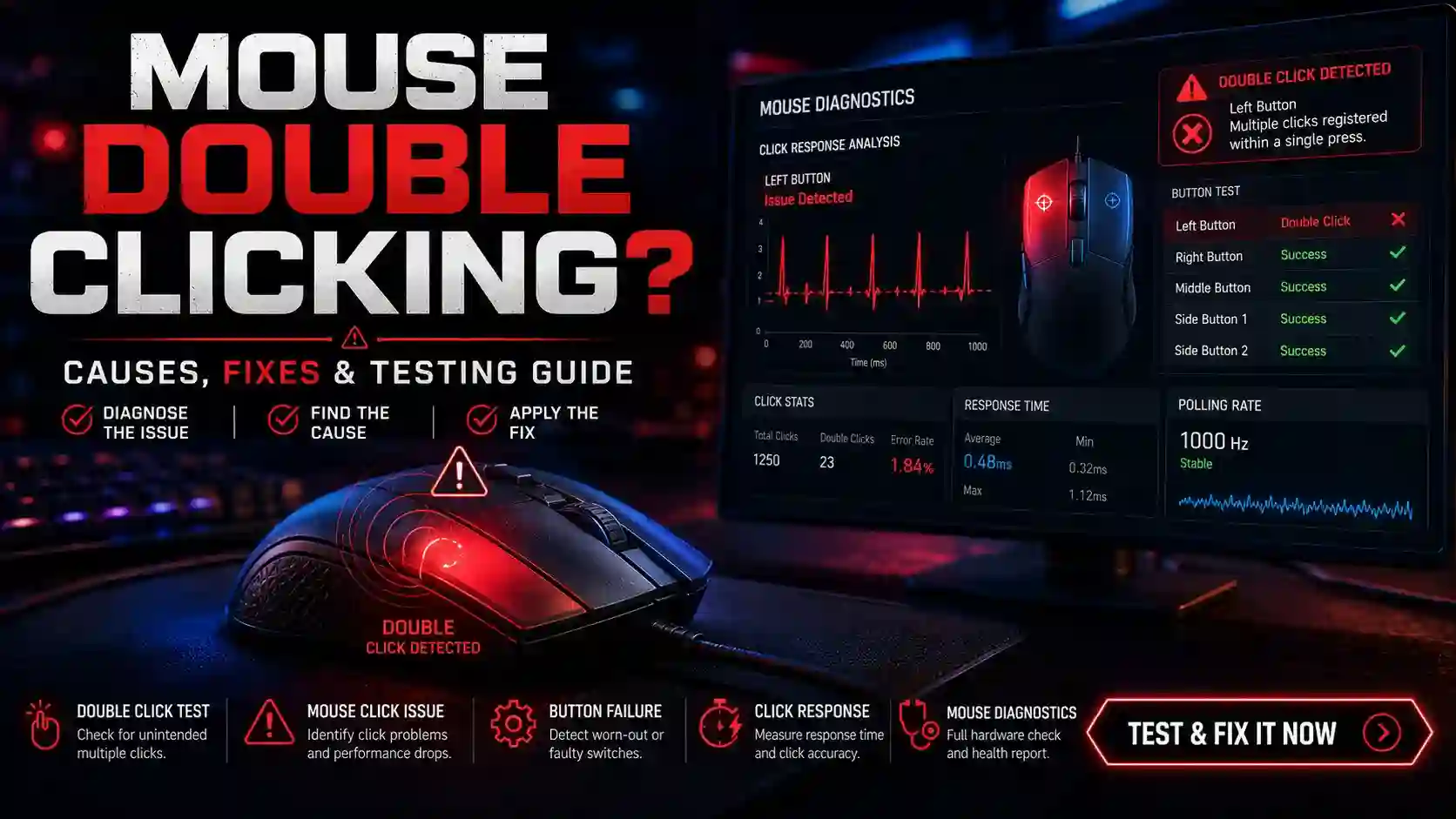
A double-click problem occurs when your mouse registers two clicks even though you only pressed the button once.
For example:
- A folder opens unexpectedly.
- A file launches instantly.
- Text becomes difficult to select.
- Drag-and-drop actions fail.
- Games register multiple actions from one click.
This issue typically affects the left mouse button but can also occur on the right or middle mouse buttons.
How to Know if Your Mouse Is Double Clicking
Common signs include:
- One click opens files twice.
- Browser tabs close unexpectedly.
- Objects are difficult to drag.
- Menus open multiple times.
- Gaming controls become inconsistent.
If you notice these symptoms frequently, your mouse may have a double-click issue.
Quick Overview of Mouse Double Click Causes
| Cause | Difficulty to Fix | Common? |
|---|---|---|
| Worn-Out Mouse Switch | Medium | Very Common |
| Dust and Dirt | Easy | Common |
| Driver Issues | Easy | Common |
| Incorrect Mouse Settings | Easy | Common |
| Hardware Damage | Difficult | Less Common |
| Manufacturing Defect | Difficult | Less Common |
Why Does a Mouse Start Double Clicking?
There are several possible reasons behind this issue.
1. Worn-Out Mouse Switches
The most common cause is a worn-out switch.
Every mouse button contains a small mechanical switch that registers clicks. After thousands or millions of clicks, the switch begins to wear out.
When this happens:
- One click may register twice.
- Clicks become inconsistent.
- Button responsiveness decreases.
This issue is especially common in heavily used gaming mice.
2. Dust and Dirt Inside the Mouse
Dust accumulation can interfere with switch operation.
Over time:
- Dust enters through gaps.
- Internal components become dirty.
- Click detection becomes unreliable.
Cleaning the mouse can sometimes solve the issue.
3. Incorrect Mouse Settings
Some operating systems include click-speed settings.
If these settings are configured incorrectly, the system may interpret clicks differently.
Check:
- Double-click speed
- Accessibility settings
- Mouse sensitivity options
Adjusting these settings can improve performance.
4. Outdated Drivers
Mouse drivers help the operating system communicate with the hardware.
Outdated drivers may cause:
- Input lag
- Incorrect click detection
- Random click behavior
Updating drivers is a simple troubleshooting step.
5. Physical Damage
Dropping a mouse or exposing it to liquids can damage internal components.
Physical damage often causes:
- Random clicks
- Missed clicks
- Double-click issues
In such cases, hardware repair may be necessary.
How to Test for Double Click Problems
A Mouse Tester is one of the easiest ways to diagnose click-related issues.
Step 1: Open a Mouse Tester
Launch your preferred Mouse Tester tool.
Step 2: Click Slowly
Press the left mouse button multiple times at a slow pace.
Step 3: Count Your Clicks
For example:
- You click 20 times.
- The Mouse Tester records 25 clicks.
This indicates a possible double-click issue.
Step 4: Repeat the Test
Test multiple times to confirm the problem.
Consistent extra clicks usually indicate switch wear.
Mouse Tester Results Explained
| Result | Meaning |
|---|---|
| Click Count Matches | Mouse Working Normally |
| Extra Clicks Detected | Double Click Issue |
| Missing Clicks | Switch Damage |
| Delayed Clicks | Driver or Hardware Problem |
| No Click Detection | Button Failure |
Using a Mouse Tester helps identify problems quickly and accurately.
How to Fix Mouse Double Clicking
Fix 1: Clean Your Mouse
Dust buildup is a common cause of button issues.
Steps:
- Disconnect the mouse.
- Use compressed air.
- Clean around the buttons.
- Remove visible dirt.
After cleaning, test the mouse again.
Fix 2: Adjust Double Click Speed
Windows users can change click speed settings.
Steps:
- Open Mouse Settings.
- Locate Double Click Speed.
- Adjust the slider.
- Test performance.
This fix can sometimes resolve software-related issues.
Fix 3: Update Mouse Drivers
Updating drivers may improve mouse performance.
Benefits include:
- Better compatibility
- Improved responsiveness
- Bug fixes
Always use the latest available drivers.
Fix 4: Test Another USB Port
Sometimes USB ports create communication issues.
Try:
- Different USB ports
- Different computers
- Different operating systems
This helps identify whether the issue is hardware-related.
Fix 5: Replace the Mouse Switch
Advanced users may replace faulty switches.
Benefits:
- Extends mouse lifespan
- Restores accurate clicking
- Saves money compared to buying a new mouse
However, this requires technical skills.
Fix 6: Replace the Mouse
If the mouse is very old or heavily damaged, replacement may be the best solution.
Modern mice often provide:
- Better durability
- Improved sensors
- More reliable switches
Why Gamers Should Care About Double Click Issues
For gamers, double-click problems can be extremely frustrating.
Potential consequences include:
- Missed shots
- Unwanted actions
- Reduced accuracy
- Competitive disadvantages
Regular testing helps maintain optimal performance.
How to Prevent Double Click Problems
You can reduce the risk of future issues by following these tips:
.
Keep Your Mouse Clean
Dust is one of the biggest causes of switch problems.
Avoid Excessive Force
Press buttons normally rather than aggressively.
Store the Mouse Properly
Protect it from moisture and impacts.
Perform Regular Testing
Use a Mouse Tester periodically to identify issues early.
Frequently Asked Questions
.
Conclusion
Mouse double-click issues are common but usually easy to diagnose. Whether the problem is caused by worn-out switches, dust, incorrect settings, or hardware damage, a Mouse Tester can help identify the root cause quickly.
By regularly testing your mouse, keeping it clean, and addressing problems early, you can maintain smooth performance for work, browsing, and gaming. If the issue persists despite troubleshooting, replacing the mouse or switch may be the best long-term solution.