Mouse Sensitivity Converter
Quick Answer Mouse sensitivity determines how far your on-screen cursor or crosshair moves in response to physical mouse movement. It combines DPI (Dots Per Inch from your mouse sensor), in-game sensitivity multipliers, Windows/OS settings, and sometimes vertical scaling.
The sweet spot for most FPS gamers (CS2, Valorant, Apex, Warzone) is 400–800 DPI with an effective sensitivity yielding 30–60 cm/360° (distance to turn a full circle). Office/general users often prefer higher DPI (800–1600) for quicker desktop navigation. Finding your ideal setting improves aim consistency, reduces fatigue, and boosts performance.
Key Takeaways
- EDPI (DPI × in-game sensitivity) is the most important metric for consistency across games.
- Most pro FPS players use low-to-medium sensitivity for precision.
- Disable mouse acceleration (Enhance Pointer Precision) for 1:1 movement.
- Use sensitivity converters to maintain muscle memory when switching games.
- Test with aim trainers (Kovaak’s, Aimlabs) rather than guessing.
- Sensitivity is personal — factors like grip style, mousepad size, and playstyle matter more than “one perfect setting.”
- Regularly re-test; small changes in hardware or posture affect feel.
What Is Mouse Sensitivity?
Mouse sensitivity is the ratio of physical mouse movement to on-screen pointer or camera movement. It combines multiple layers:
- DPI: Hardware sensitivity how many dots the sensor reports per inch of movement.
- In-game sensitivity: Software multiplier in each game.
- OS settings: Windows pointer speed and acceleration.
- Polling rate: How often the mouse reports data (higher = smoother, e.g., 1000Hz+).
Higher sensitivity = less physical movement needed for big turns (faster but less precise). Lower sensitivity = more arm movement for control (slower but more accurate for tracking and flicks)
Related terms: Pointer speed, cursor sensitivity, aim settings, mouse speed, sensitivity scaling.
Why Is Mouse Sensitivity Important?
Proper sensitivity directly impacts:
- Aim accuracy & consistency — especially in competitive shooters.
- Muscle memory — building reliable flicking and tracking.
- Fatigue & ergonomics — wrong settings cause wrist strain.
- Cross-game performance — mismatched sens between Valorant and CS2 feels off.
- Productivity — graphic designers or office users need different balance than gamers.
In FPS games, suboptimal sensitivity can cost you duels. Studies on first-person targeting show a statistically optimal range balancing speed and precision.
For different audiences:
- Casual gamers/office users: Faster settings for comfort.
- FPS competitors (CS2, Valorant, Apex, Warzone): Precision-focused lower sens.
- Graphic designers: Medium for fine control without constant arm movement.
How Does Mouse Sensitivity Work?
- Mouse sensor detects movement and sends DPI data.
- OS (Windows/macOS) applies pointer speed multiplier.
- Game engine multiplies it further with in-game sens.
- Result: Pixels moved on screen.
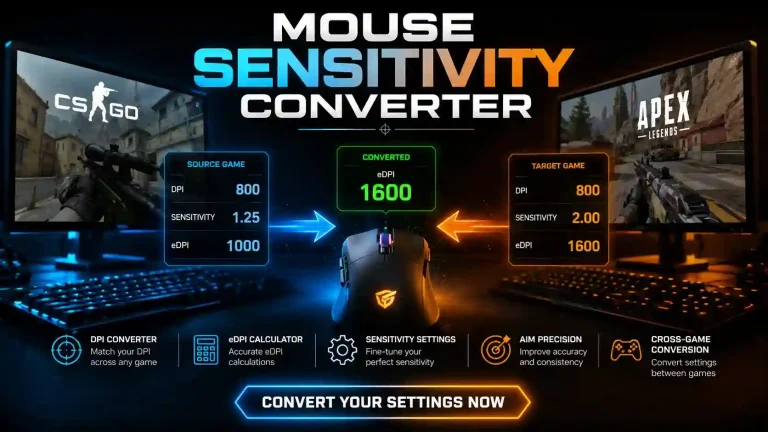
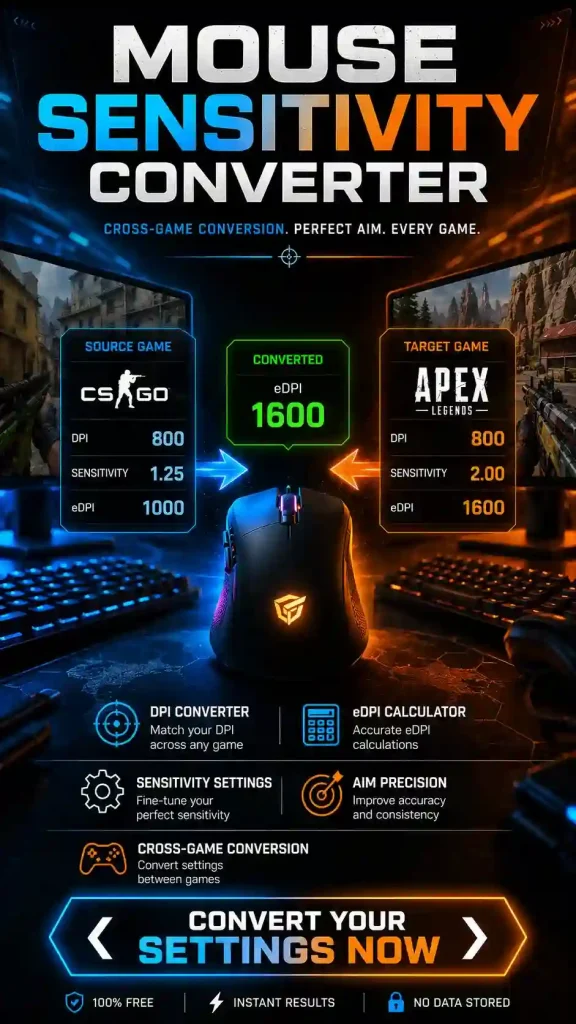
Key formula: eDPI = DPI × In-game Sensitivity cm/360° measures real-world feel (highly recommended for consistency).
Types of Mouse Sensitivity & Settings
Low Sensitivity (higher cm/360): Arm aiming, great for precision (common in CS2 pros). Medium Sensitivity: Balanced wrist + arm (most popular). High Sensitivity: Wrist aiming, faster turns (risk of overshooting). Vertical Scaling: Separate Y-axis adjustment (rarely needed; usually 1.0). Scoped/ADS Sensitivity: Multipliers for zoom/aim-down-sight.
Key Components & Elements
DPI
400 800 recommended for FPS
Polling Rate
1000Hz minimum; 2000–8000Hz on modern mice.
Mouse Grip
Fingertip, claw, palm affects viable sens range.
Mousepad & Surface
Larger pads favor lower sens.
Windows Settings
Pointer speed 6/11, Enhance Pointer Precision OFF.
Raw Input
Most games have this option enables direct mouse input, bypassing OS.
Logitech, Razer, Zowie, etc., software lets you set DPI stages and profiles.
How to Adjust Mouse Sensitivity on Computer (Windows & Mac)
Windows:
- Go to Settings → Bluetooth & devices → Mouse → Additional mouse options.
- Pointer Options tab: Set slider to 6/11, uncheck Enhance Pointer Precision.
- Apply and test.
Mac: System Settings → Mouse → Adjust tracking speed slider. Disable natural scrolling if needed.
Gaming mice: Use manufacturer software (G HUB, Synapse, etc.) for DPI and profiles.
How to Find Your Optimal Mouse Sensitivity
- Choose baseline DPI (400 or 800).
- Set in-game sens to a comfortable starting point (e.g., 1.0–2.0).
- Measure cm/360: Move mouse in a straight line until you complete a 360° turn. Aim for 30–60 cm for FPS.
- Use aim trainers to refine: Practice flicks, tracking, and micro-adjustments.
- Test in real games for a few days.
- Iterate — small changes of 5–10% at a time.
Pro Tip: Use the “FOV & sensitivity consistency” method when switching games
Mouse Sensitivity Converter & Calculator Tools
Best free tools (2026):
- Mouse-Sensitivity.com Most advanced, supports 1500+ games and zoom aims.
- GamingSmart Converter.
- Aiming.pro Calculator.
- KovaaK’s built-in converter.
How to use a sensitivity converter:
- Enter your current game + sens + DPI.
- Select target game.
- Copy new settings. This preserves your cm/360 feel.
Popular: Mouse sensitivity calculator Minecraft, Apex, Valorant, CS2.
Game-Specific Recommendations & Pro Settings
CS2:
- Most pros: 400–800 DPI, eDPI ~600–1000.
- donk: 800 DPI, 1.25 sens (eDPI 1000, Windows 4).
- m0NESY: 400 DPI, 2.3 sens (eDPI ~920).
- NiKo: ~800 DPI, ~0.9 sens (adjusts frequently).
Valorant: Lower eDPI (~200–400) due to slower movement.
Apex Legends: Higher sens (20–60 cm/360) for movement-heavy play.
Warzone: Medium settings.
Minecraft: Often higher for building/exploration.
Comparison Table: Recommended Settings
| Game | Recommended DPI | eDPI Range | cm/360 Range | Playstyle |
|---|---|---|---|---|
| CS2 | 400–800 | 600–1000 | 35–75 | Precision rifling |
| Valorant | 400–800 | 200–400 | 40–70 | Tactical aiming |
| Apex Legends | 400–800 | 400–800 | 20–60 | Fast movement |
| Warzone | 400–800 | 300–600 | 30–65 | Battle royale tracking |
| General Use | 800–1600 | N/A | Faster cursor | Productivity |
Real-World Examples & Applications
Common Issues
Mouse sensitivity suddenly fast/slow: Check battery, surface, software, Windows update. Not working: Raw input off, conflicting software. Mac/Apple Mouse: Adjust tracking speed carefully.
Pro
Con
Better aim consistency and muscle memory. Reduced wrist strain. Improved performance across titles
Limitations:
High DPI can introduce jitter on some sensors
No universal “best” — highly individual.
Changing sens resets muscle memory temporarily.
Common Mistakes & How to Fix Them
- Copying pro settings blindly → Test and adjust.
- Leaving Enhance Pointer Precision ON → Disable it.
- Ignoring cm/360 → Always measure real movement.
- Frequent big changes → Tweak gradually.
- Forgetting vertical sensitivity → Keep at 1.0 unless needed.
- Using different DPI stages → Stick to one for consistency.
Statistics & Facts
Competitive players overwhelmingly prefer 400–800 DPI. Research shows optimal sensitivity ranges exist for targeting tasks, balancing speed-precision trade-off. Pro surveys (via prosettings.net) show most CS2/Valorant players target specific eDPI values for muscle memory.
Expert Tips & Best Practices
- Warm up in aim trainers daily.
- Use large mousepad for low sens.
- Maintain consistent setup (same mouse, pad, posture).
- Monitor for RSI — take breaks.
- For multi-game players: Prioritize one main sens and convert others.
- Test different grips if current sens feels limited.
- Update mouse firmware regularly.
(FAQs)
Summary
Mastering mouse sensitivity is a combination of science, testing, and personalization. Focus on eDPI consistency, proper Windows settings, and regular practice with converters and aim trainers. Whether you’re dominating ranked matches in CS2, Valorant, Apex, or just want smoother productivity, the right settings make a massive difference.
Experiment, measure your cm/360, and iterate. Your perfect sensitivity is the one that feels natural and delivers results.