Drag and Drop Complete Guide to Mouse Drag Tests, Drag Clicking, CPS, and Mouse Performance
Drag Test
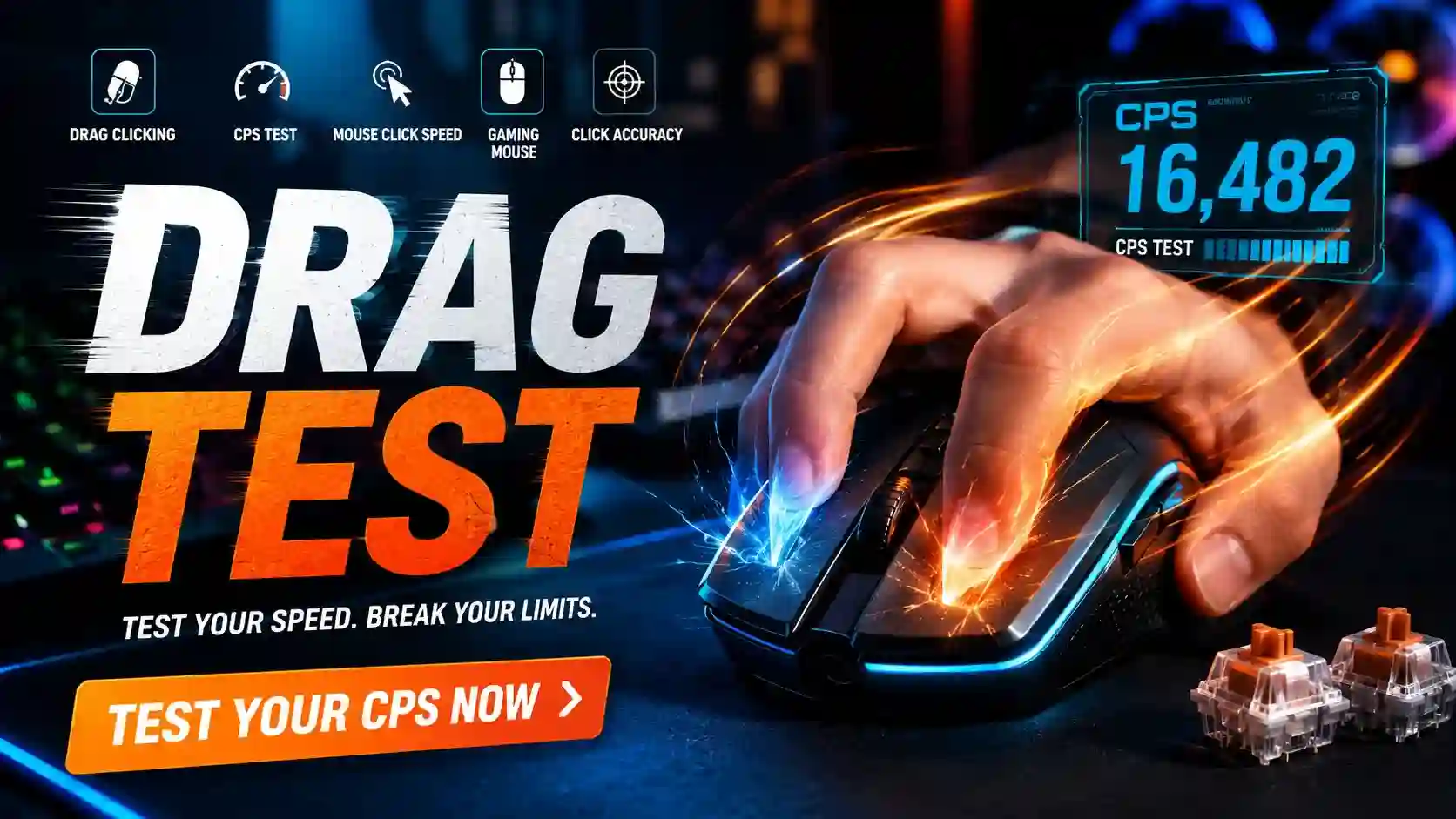
Drag and drop testing evaluates your mouse’s ability to register and hold clicks while moving the cursor, crucial for both everyday use and advanced techniques like drag clicking. Whether troubleshooting a faulty mouse, practicing for competitive gaming (like Minecraft PvP), or maximizing clicks per second (CPS), this comprehensive guide covers everything from basic drag-and-drop functionality tests to expert-level drag clicking strategies.
Quick Answer Box
A drag and drop test checks if your mouse reliably holds a button press while dragging objects on screen. A drag click test measures rapid clicks (often 30–100+ CPS) achieved by dragging your finger across the mouse button to exploit switch vibrations. Both are essential for diagnosing hardware issues and optimizing gaming performance. Use online tools for instant results—no downloads needed.
Key Takeaways
- Drag tests verify basic click-and-hold functionality for left/right buttons and touchscreens.
- Drag clicking is an advanced technique for extremely high CPS by creating friction-induced vibrations on the mouse button.
- Compatible mice with textured surfaces and responsive switches perform best for drag clicking.
- Typical results: Beginners 20–40 CPS; experts 80+ CPS in bursts.
- Drag clicking can accelerate wear on mouse switches and may be restricted in some games.
- Online tools provide real-time CPS, burst tracking, timelines, and event logs.
- Proper technique, finger condition, and mouse choice are more important than raw strength.
- Combine drag tests with CPS, jitter click, butterfly click, and mouse DPI/sensitivity tools for full evaluation.
What Is Drag and Drop (and Drag Clicking)?
Drag and drop refers to pressing and holding a mouse button while moving the cursor to relocate items on screen. In testing contexts, it assesses whether the mouse maintains the button state without dropping prematurely, which indicates switch quality, sensor stability, or driver issues.
Drag clicking (or drag click) is a specialized technique where you drag your finger along the mouse button’s surface. Friction causes the button to vibrate rapidly, registering multiple clicks from one motion. This differs from standard clicking and is popular in games requiring high click rates, such as Minecraft bridging or PvP.
Related terms include: mouse drag test, drag click mouse test, drag click CPS, drag click tape, and drag and drop check.
Why Is Drag and Drop / Drag Clicking Important?
Reliable drag-and-drop functionality ensures smooth productivity (file management, graphic design) and gaming. Faulty dragging leads to dropped items, frustration, and lost progress.
Drag clicking matters for:
- Competitive Gaming: Achieves extreme CPS for godbridging, tellybridging, block clutching, and fast building in Minecraft 1.8 PvP.
- Hardware Evaluation: Tests mouse switch quality and debounce settings.
- Skill Development: Improves hand technique, reaction time, and consistency.
- Performance Benchmarking: Compares against jitter clicking, butterfly clicking, or regular clicking.
Poor drag performance can stem from dirty switches, outdated drivers, low-quality mice, or grip issues.
How Does Drag Clicking Work?
Drag clicking exploits the mechanical properties of mouse switches:
- Your finger applies light downward pressure while moving across the button.
- Friction creates micro-vibrations.
- The switch opens and closes rapidly, registering multiple clicks.
- Textured mouse surfaces enhance grip and vibration transfer.
Long drag clicks cover more distance for sustained high CPS. Short drag clicks offer precision for quick actions like bridging.
Types of Drag Tests and Clicking Techniques
- Basic Drag and Drop Test: Hold and move an on-screen object to check button hold reliability (left/right buttons or touchscreen).
- Drag Click CPS Test: Measures clicks during dragging motion over timed intervals (5s, 10s, 30s, 60s)
- Left vs Right Mouse Button Drag Test: Many tools support both; right-click drag is less common but useful for specific games.
- Regular Clicking: Standard press-and-release (typically 8–14 CPS).
- Drag Clicking: Friction-based (30–100+ CPS possible)
- Butterfly Clicking: Alternating two fingers on left button
Key Components of a Mouse Drag Test Tool
Effective tools include:
How to Perform a Drag and Drop Test (Step-by-Step)
- Visit a reliable online tool (e.g., cps-check.com/drag-test or similar).
- Position cursor over the “Drag Me” object.
- Press and hold the desired mouse button (left or right).
- Move the cursor in any direction while holding.
- Observe if the object follows smoothly without dropping.
- Release and review results (success/failure indicators).
For drag click testing:
- Start the timer.
- Drag your finger across the button rapidly.
- Aim for consistent friction without excessive pressure.
Real-World Examples
- Productivity: Dragging files in Windows Explorer or layers in Photoshop.
- Gaming: Minecraft players use drag clicks for 60+ CPS bridging.
- Troubleshooting: A mouse that drops drags mid-motion may need cleaning or replacement.
- Training: Gamers practice short drags for precise movements and long drags for maximum speed.
Applications Across Industries
Gaming/ESports: PvP optimization, aim training integration. Hardware Testing: Manufacturers and reviewers benchmark switches. Accessibility: Evaluating input devices for users with motor challenges. Software Development: Testing UI drag-and-drop interactions. Everyday Computing: Ensuring reliable mouse performance for work.
Advantages of Drag Clicking and Proper Drag Testing
Extremely high CPS with relatively low effort. Consistent results once mastered. Helps evaluate mouse quality (e.g., best drag click mice like certain Logitech, Roccat, or Glorious models). Fun benchmarking tool that builds dexterity. Identifies hardware issues early
Limitations and Challenges
Accelerates mouse switch wear and potential failure. Not allowed on some servers (e.g., anti-cheat systems). Requires specific mouse textures and finger conditions (dry, clean fingers work best). Learning curve—over-pressing reduces effectiveness. Can cause hand fatigue or strain with poor technique.
Common Mistakes and How to Fix Them
Pressing Too Hard
Causes jitter instead of smooth drag. Fix: Use light, petting-like pressure.
Wrong Finger Position
Flat finger limits vibration. Fix: Angle finger and use wrist motion.
Dirty or Glossy Mouse
Poor friction. Fix: Clean buttons or apply specialized tape.
Incompatible Mouse
Smooth surfaces fail. Fix: Choose textured gaming mice.
Ignoring Posture
Tense grip reduces control. Fix: Relaxed hand, proper desk setup
Testing on Wrong Timer
Short tests hide inconsistencies. Fix: Use multiple durations.
Drag Clicking Techniques Comparison
| Technique | CPS Potential | Use Case | Difficulty | Mouse Requirements |
|---|---|---|---|---|
| Regular Click | 8–14 | General use | Easy | Any |
| Jitter Click | 15–25 | Fast clicking | Medium | Good switches |
| Butterfly Click | 20–40 | Alternating fingers | Medium | Responsive buttons |
| Drag Click (Short) | 40–70 | Bridging, precision | Medium | Textured surface |
| Drag Click (Long) | 60–100+ | Max CPS, clutches | Hard | Optimal drag mouse |
Performance Levels
- Performance Levels
- Beginner: 20–40 CPS
- Intermediate: 40–60 CPS
- Advanced: 60–80 CPS
- Expert: 80+ CPS (with optimal setup and technique)
Expert Tips and Best Practices
Mouse Preparation: Clean buttons thoroughly. Some use drag click tape for better friction. Hand Positioning: Index finger angled, wrist bent for motion. Keep grip relaxed. Practice Routine: Start with 5-second tests, gradually increase time. Record sessions for review. Equipment: Invest in proven drag click mice (lightweight, textured). Adjust debounce time if software allows. Maintenance: Monitor for double-clicking issues; replace switches as needed. Combine Tools: Use alongside APM test, scroll test, mouse DPI test, and aim trainers. Safety: Take breaks to avoid strain; respect game rules
(FAQs)
Summary
Mastering drag and drop tests alongside drag clicking elevates both your hardware troubleshooting skills and gaming performance. Start with basic functionality checks, progress to CPS benchmarking, refine your technique, and select the right mouse for optimal results. Regular practice with comprehensive online tools builds confidence and reveals insights into your setup that generic tests miss. Whether you’re a beginner diagnosing a mouse or an expert chasing record CPS, consistent, informed practice delivers the best outcomes. Test your mouse today and track your progress over time!