Intro
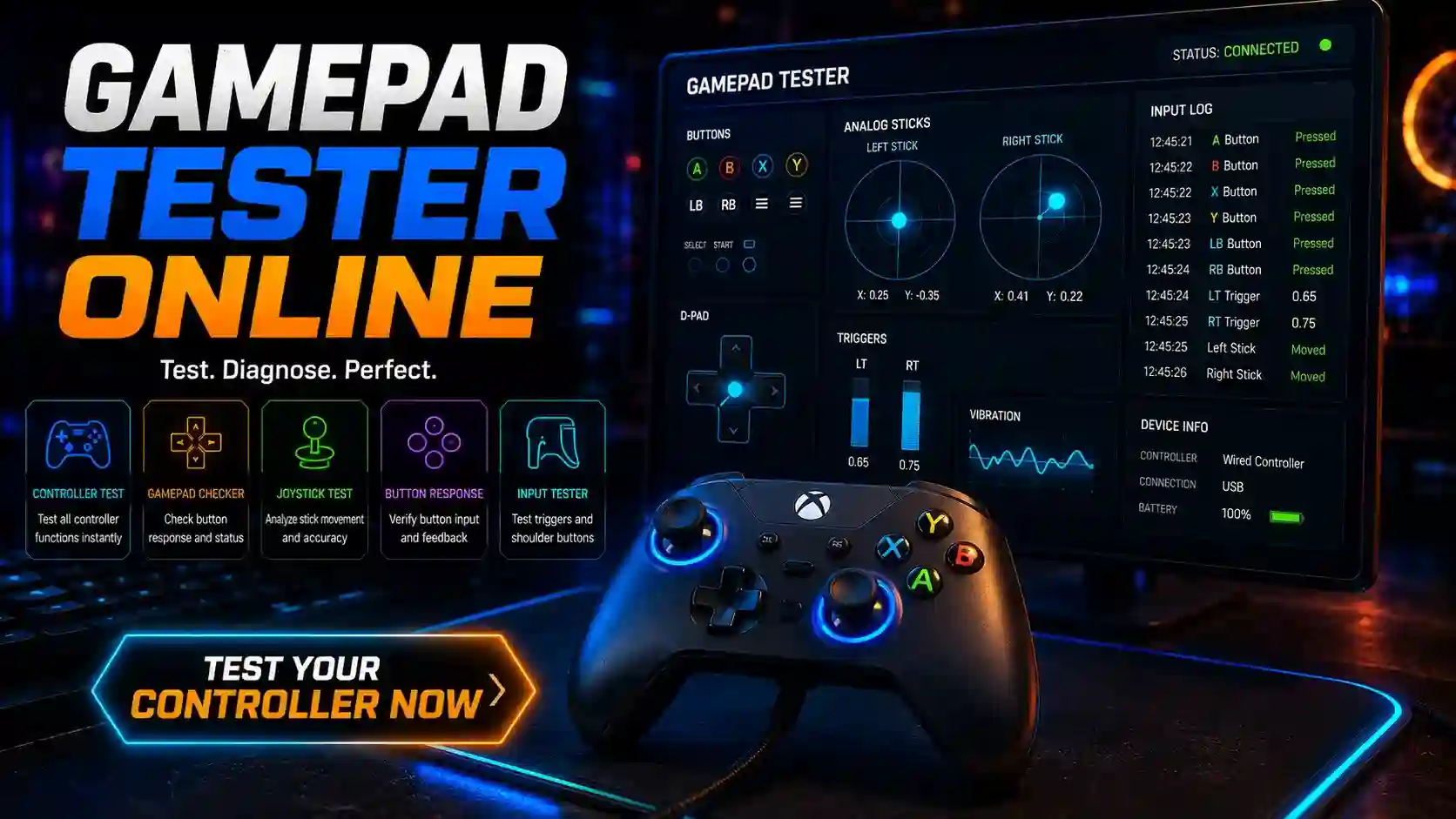
A gamepad tester (also called a controller tester) is a free browser-based tool that lets you instantly check if your gaming controller is working properly. Connect your PS5, PS4, Xbox, Switch, or any USB/Bluetooth gamepad, press a button, and get real-time feedback on buttons, analog sticks, triggers, deadzone, stick drift, vibration, and more — all using the HTML5 Gamepad API. No software installation required.
Gamepad Tester
Key Takeaways
- Most gamepad issues (stick drift, unresponsive buttons) can be diagnosed in under 2 minutes with an online tester.
- Browser-based testers use the Gamepad API for local, private testing — nothing is sent to servers.
- Common problems like stick drift and deadzone issues affect even new controllers over time.
- Best results in Chrome or Edge; supports Xbox, PlayStation DualSense/DualShock, Switch Pro, and generic controllers.
- Regular testing helps before buying used controllers, after repairs, or for competitive gaming setups.
- Advanced tests include vibration rumble, trigger pressure, polling rate, and input latency.
- All data stays on your device — fully private and secure.
What Is a Gamepad Tester?
A gamepad tester is a diagnostic tool that reads raw input data from your controller in real time. It visualizes button presses, analog stick movement (joysticks), trigger pressure, vibration motors, and other inputs.
Modern online versions run directly in your web browser using the HTML5 Gamepad API, making them accessible, free, and requiring no downloads or drivers. They help gamers, repair technicians, and developers verify controller health, detect hardware faults like drift, and ensure optimal performance.
Why Is a Gamepad Tester Important?
Controllers wear out — potentiometers in analog sticks degrade, causing stick drift, buttons get stuck, and triggers lose sensitivity. A reliable gamepad tester online helps you:
- Diagnose issues before they ruin gameplay.
- Verify a used or repaired controller.
- Calibrate settings for better accuracy.
- Troubleshoot connection, latency, or compatibility problems.
- Save money by avoiding unnecessary replacements.
In competitive gaming, even minor drift or latency can cost matches. For casual players, it ensures immersive experiences with proper vibration feedback and responsive inputs.
How Does a Gamepad Tester Work?
Online testers rely on the browser’s built-in Gamepad API. Here’s the process:
- Your OS detects the controller via USB or Bluetooth.
- You visit the tester page and press any button (required for security).
- The browser reads axis values (sticks/triggers), button states, and haptic data.
- The page visualizes everything in real time — highlights, graphs, and logs.
- Advanced tools measure deadzone, circularity, polling rate, and drift over time.
Types of Gamepad Testers
- Basic Browser Testers — Simple button and stick visualization (e.g., hardwaretester.com style).
- Advanced Diagnostic Tools — Include drift detection, vibration patterns, latency measurement, and reports.
- Platform-Specific — Optimized for PS5 DualSense (adaptive triggers), Xbox (impulse triggers), or Android.
- Developer/Debug Tools — Show raw API data for custom mapping.
- Mobile/APK Testers — Limited Android apps, but browser versions work better on desktop.
Key Components and Features to Test
- Buttons — All face buttons, shoulder buttons (LB/RB), D-Pad, and special keys.
- Analog Sticks (Joysticks) — Movement range, deadzone, drift, and circularity.
- Triggers — Pressure sensitivity (especially PS5 adaptive triggers).
- Vibration/Rumble — Dual motors (heavy + light) and patterns.
- Connection & Detection — USB vs Bluetooth stability.
- Advanced Metrics — Polling rate (Hz), input latency, battery level (where supported), gyro/motion.
Related terms: controller inputs, analog axes, haptic feedback, button mapping.
How to Use a Gamepad Tester Online (Step-by-Step)
- Connect your controller via USB (recommended for stability) or Bluetooth.
- Open a trusted tester in Chrome or Edge.
- Press any button on the controller to activate detection.
- Test each component:
- Press all buttons and watch highlights.
- Move sticks in full circles and check for smooth response.
- Pull triggers slowly for pressure testing.
- Run vibration test with different intensities.
- Rest sticks to measure drift and deadzone.
- Review logs and export results if available.
Pro Tip: Test in a quiet environment and compare multiple controllers side-by-side.
Supported Controllers
| Controller Type | USB Support | Bluetooth Support | Vibration | Advanced Features | Notes |
|---|---|---|---|---|---|
| Xbox Series X/S & One | Excellent | Excellent | Full | Impulse Triggers | Best overall |
| PS5 DualSense | Excellent | Good | Full | Adaptive Triggers, Gyro | Chrome/Edge best |
| PS4 DualShock 4 | Excellent | Good | Full | Touchpad, Lightbar | Reliable |
| Nintendo Switch Pro | Good | Good | HD Rumble | Motion Sensors | Solid |
| Generic / 8BitDo, Logitech, Razer | Varies | Varies | Partial | Basic | XInput mode preferred |
Popular Controller Tests
When to Test Your Controller
- Buying a used gamepad.
- Diagnosing stick drift or unresponsive inputs.
- After cleaning or repair.
- Setting up a new or competitive rig.
- Verifying button mapping in custom setups.
- Troubleshooting connection issues on PC, Android, or browser-based games.
Advantages of Online Gamepad Testers
- Completely free and instant.
- No installation or drivers needed.
- Privacy-focused (local processing).
- Cross-platform (Windows, Mac, Linux, ChromeOS).
- Comprehensive diagnostics in one place.
- Great for developers using the Gamepad API.
Limitations and Challenges
- Browser support varies (Safari is limited).
- Some advanced features (full gyro, adaptive triggers) need WebHID permissions.
- Bluetooth can introduce minor latency compared to wired.
- Not all third-party controllers report full data.
- Mobile testing is restricted.
Common Mistakes and How to Avoid Them
- Forgetting to press a button after connecting → Always interact first.
- Using outdated browser → Stick to latest Chrome/Edge.
- Testing over weak Bluetooth → Prefer USB for accuracy.
- Ignoring small drift → Calibrate in-game or replace early.
- Running games in background → Close them for clean readings.
Comparison Table: Online vs Other Methods
| Method | Ease of Use | Features | Cost | Privacy | Best For |
|---|---|---|---|---|---|
| Online Browser Tester | Excellent | High | Free | High | Quick checks |
| Windows Game Controllers | Good | Medium | Free | High | Basic |
| Console Built-in | Poor | Low | Free | High | Limited |
| Dedicated Software | Medium | Very High | Free/Paid | Medium | Advanced users |
| Physical Repair Shop | Low | High | Paid | Medium | Hardware fixes |
Expert Tips and Best Practices
- Test regularly — every few months or before big tournaments.
- Log results over time to track degradation.
- For drift, clean potentiometers or apply deadzone in games.
- Use wired connection for lowest latency.
- Combine with in-game calibration for best performance.
- Update controller firmware via official software.
- For Android: Limited browser support; consider dedicated apps cautiously.
Frequently Asked Questions
Summary
A gamepad tester online is an essential, free tool for every gamer. It provides instant, detailed insights into your controller’s health — from basic button tests to advanced drift detection, vibration, and latency checks. By regularly testing your PS5, PS4, Xbox, or other controllers, you can catch issues early, optimize performance, and enjoy smoother gameplay.
Bookmark a reliable tester, test your setup today, and keep your controllers in top condition. Happy gaming!