Mouse DPI Analyzer Test Your Mouse DPI Accurately for Better Gaming and Precision
DPI Analyzer
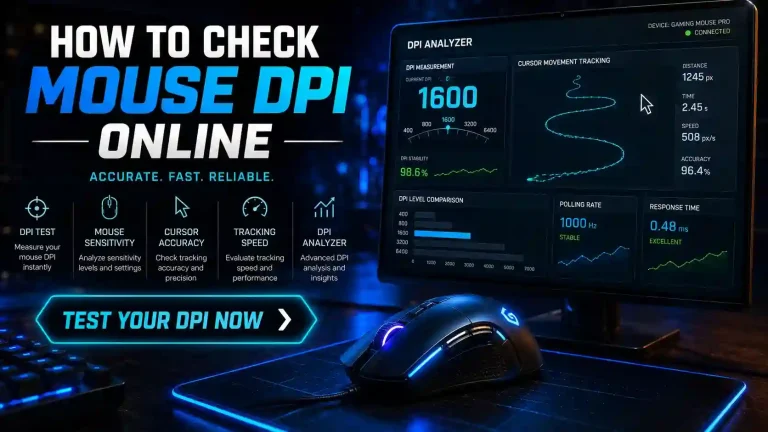
A DPI Analyzer is an essential online tool that measures your mouse’s true Dots Per Inch (DPI) by comparing physical mouse movement to on-screen cursor travel. Whether you’re a gamer fine-tuning sensitivity, a designer needing pixel-perfect control, or someone optimizing everyday use, verifying your mouse DPI ensures consistent performance, accurate aim, and reliable cursor movement.
This guide covers everything from how DPI Analyzers work to step-by-step testing, changing DPI on Logitech mice (and others), recommended settings for popular games, and expert tips for maximum accuracy.
Quick Answer Box
What is a DPI Analyzer? A free browser-based mouse DPI tester that calculates your mouse’s actual sensitivity by tracking how far the cursor moves when you physically move the mouse a known distance (e.g., 5 inches). It helps confirm manufacturer specs, detect sensor issues, and optimize settings.
Why use one? Accurate DPI is foundational for consistent mouse sensitivity, especially in FPS games where small differences affect aim.
Key Takeaways
- DPI (Dots Per Inch) measures how many pixels your cursor moves per inch of physical mouse movement.
- Most competitive gamers use 400–800 DPI for precision; higher values (1600+) suit faster movements but can reduce accuracy if not paired with low in-game sensitivity.
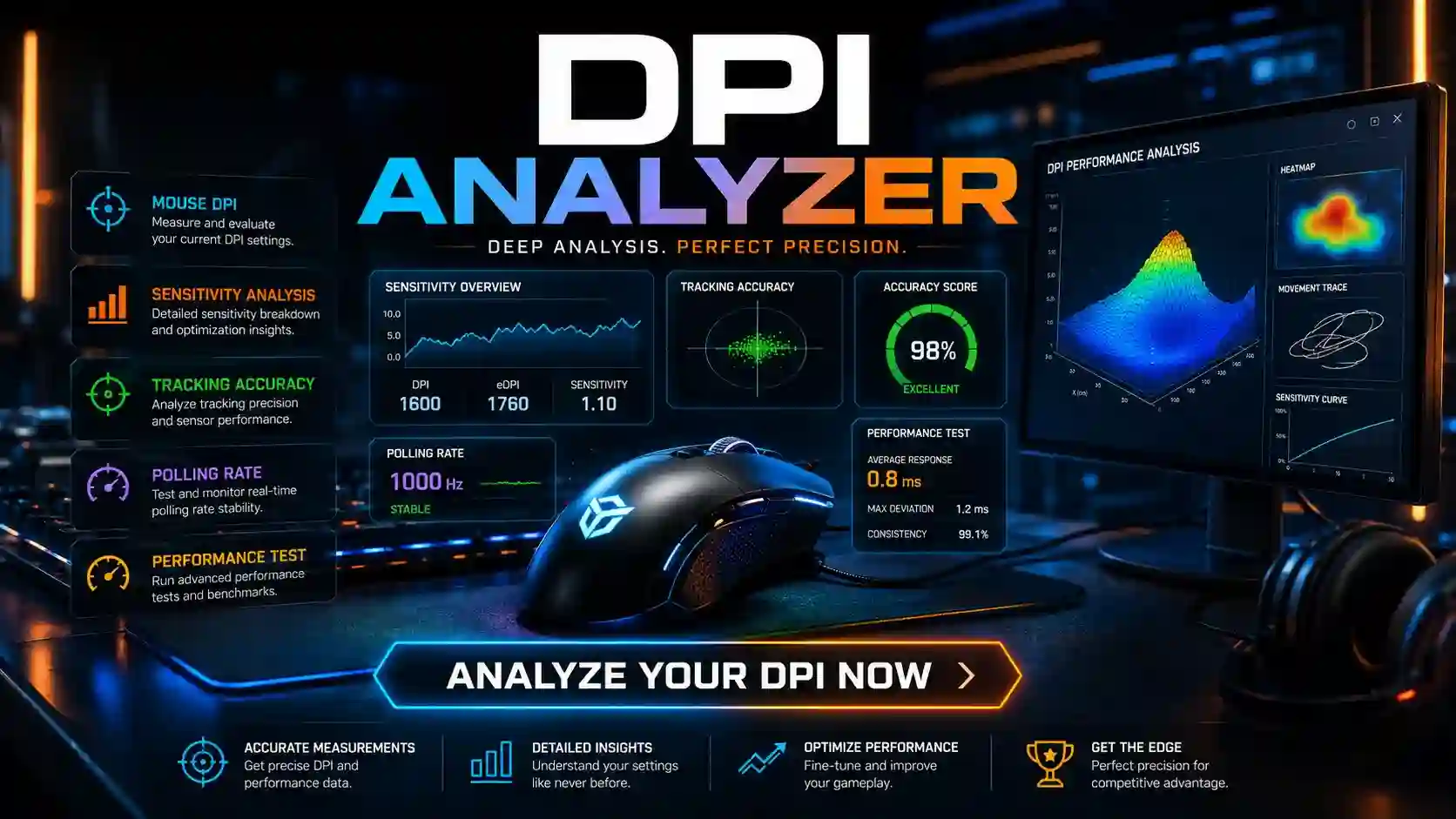
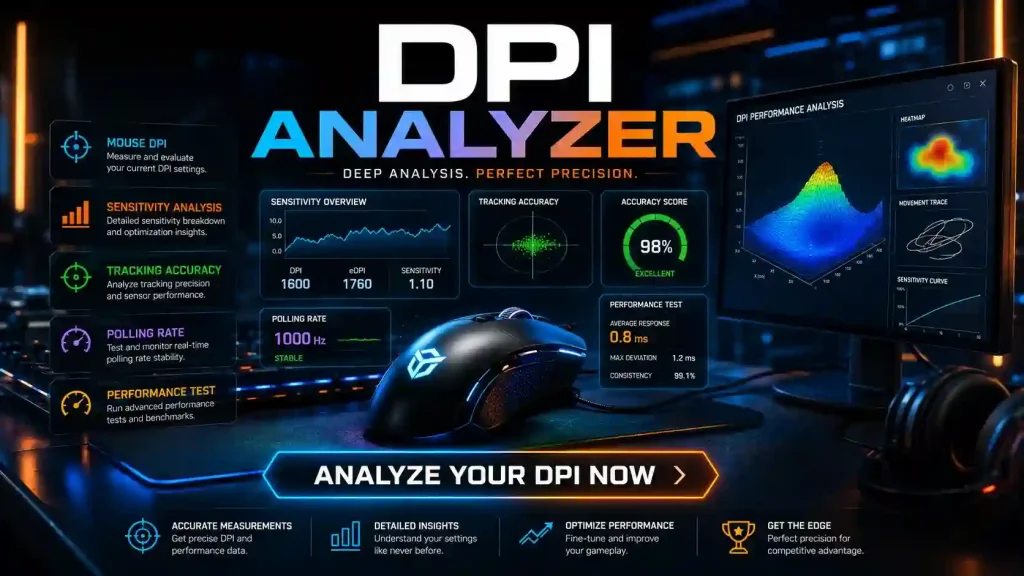
- eDPI (effective DPI = mouse DPI × in-game sensitivity) standardizes sensitivity across setups.
- Online DPI Analyzers require no downloads and work on Windows, Mac, and browsers.
- Disable mouse acceleration (e.g., “Enhance Pointer Precision” on Windows) for accurate tests.
- Logitech mice often use G HUB for precise DPI adjustments; test regularly as sensors can deviate.
- Proper DPI improves gaming performance, creative work accuracy, and daily productivity.
What Is a Mouse DPI Analyzer?
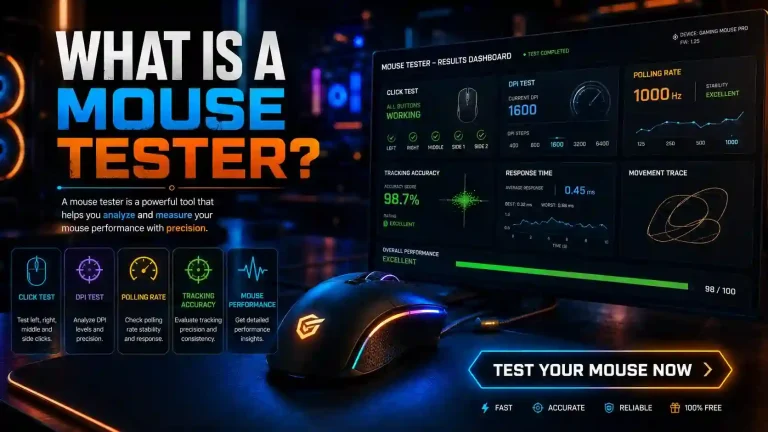
A Mouse DPI Analyzer (also called DPI tester, mouse DPI checker, or sensitivity analyzer) is a tool that calculates the actual DPI of your mouse sensor. It does this by measuring the ratio of physical mouse movement (in inches or cm) to cursor movement on screen (in pixels).
DPI stands for Dots Per Inch (sometimes called CPI – Counts Per Inch). A 800 DPI mouse moves the cursor 800 pixels for every inch of physical movement on your mouse pad.
Why the analyzer matters: Manufacturer-stated DPI isn’t always exact due to sensor variations, firmware, OS settings, or acceleration. Analyzers reveal the true DPI for reliable sensitivity tuning.
Popular tools include mouse-sensitivity DPI Analyzer, which offers high accuracy with deviation tracking and multi-axis testing.
Why Is a DPI Analyzer Important?
Testing with a DPI Analyzer delivers several key benefits:
- Consistent Aim in Games: Ensures your crosshair movement matches expectations across sessions and titles.
- Sensor Precision Verification: Detects if your mouse sensor under- or over-performs.
- Sensitivity Matching: Helps convert settings between games or match pro player eDPI.
- Productivity and Creative Work: Precise cursor control for design, photo editing, or general use.
- Troubleshooting: Identifies issues like acceleration, polling rate problems, or hardware faults.
For gamers, mismatched DPI leads to inconsistent tracking, poor flicks, and tracking errors. For everyone else, it optimizes speed and accuracy.
Use Cases:
- Competitive FPS players (Valorant, CS2, Apex Legends).
- Logitech mouse users verifying DPI button settings.
- Mac users calibrating non-linear tracking.
- Anyone switching mice or troubleshooting cursor speed.
How Does a DPI Analyzer Work?
DPI Analyzers use your browser’s ability to track cursor position combined with user-provided physical distance:
- You input a target distance (e.g., 5 inches or 10 cm) using a physical ruler or marked pad.
- You click and drag (or hold and move) the mouse exactly that distance.
- The tool measures pixel displacement on-screen and calculates DPI = pixels moved / physical distance (in inches).
Advanced tools test X/Y axes separately, calculate deviation (sensor accuracy), and support multiple units.
Types of DPI Analyzers
- Online Browser Tools: No install needed (e.g., mouse-sensitivity.com, various free testers). Best for quick checks.
- Software-Based: Mouse Tester apps or manufacturer tools (Logitech G HUB) for deeper analysis like jitter and polling rate.
- Hardware/Physical Methods: Using Paint or rulers manually (less accurate).
- Game-Specific Testers: In-game tools or combined sensitivity calculators.
Online versions are most accessible and sufficient for most users.
How to Use a DPI Analyzer Tool (Step-by-Step)
- Prepare: Use a ruler or mark exact distances (5 inches common) on your mouse pad. Disable mouse acceleration in OS settings.
- Calibrate Display (if required): Some tools ask for screen resolution or PPI.
- Set Target Distance: Enter inches/cm and axis (X or Y).
- Start the Test: Click/hold and move mouse precisely the set distance.
- View Results: Tool shows measured DPI, deviation, and comparisons. Repeat 3–5 times for average.
Tips for Accuracy: Move slowly and straight. Test on a consistent surface. Use the same DPI setting as in-game.
How to Change Mouse DPI on Windows, Mac, and Logitech Mice
Windows 10/11
- Go to Settings > Bluetooth & devices > Mouse > Additional mouse options > Pointer Options.
- Adjust pointer speed slider (affects effective sensitivity).
- For exact DPI: Use manufacturer software.
Logitech: Install G HUB > Select mouse > Sensitivity (DPI) section > Set levels and DPI button cycling.
MacOS
- System Settings > Mouse > Tracking Speed slider.
- For precise DPI: Use Logitech software or third-party tools like LinearMouse. Mac tracking is non-linear, so test with analyzer.
DPI Button: Many gaming mice (Logitech included) have a button to cycle presets.
Recommended DPI Settings for Gaming
General Recommendation: Start at 800 DPI for balance.
- Valorant/CS2: 400–800 DPI, eDPI ~200–400 (e.g., 800 DPI × 0.4 sens = 320 eDPI).
- Apex Legends/Fortnite: 800–1600 DPI for faster tracking.
- Productivity: 1000–1600 DPI for large/high-res screens.
eDPI is key for comparing setups: It represents overall sensitivity independent of hardware.
Real-World Examples
- A Valorant player tests at 800 DPI claimed, but analyzer shows 785. They adjust in-game sens upward slightly for consistency.
- Graphic designer uses analyzer to match cursor feel across monitors.
- Logitech G Pro user verifies DPI stages (400/800/1600) for quick switches.
Advantages of Using a DPI Analyzer
- Free, instant, no downloads.
- Works on all devices/browsers.
- Improves aim consistency and performance.
- Helps debug hardware/software issues.
- Supports multi-axis and accuracy checks.
Limitations and Common Mistakes
Limitations:
- Browser tools can be affected by OS acceleration or high polling rates.
- Not a replacement for professional sensor testing.
- Requires precise physical measurement.
Common Mistakes:
- Forgetting to disable Enhance Pointer Precision (Windows) → inflated results.
- Inconsistent movement or poor lighting/surface.
- Relying on single test instead of averaging.
- Ignoring eDPI when comparing to pros.
- Fix: Always test multiple times, use a flat surface, and combine with in-game feel tests.
Comparison Table: DPI Analyzer vs Alternatives
| Method | Accuracy | Ease of Use | Requirements | Best For |
|---|---|---|---|---|
| Online DPI Analyzer | High | Very Easy | Browser + Ruler | Most users, quick tests |
| Manufacturer Software | Medium-High | Easy | Install | Logitech/Gaming mice |
| Manual (Paint/Ruler) | Low | Moderate | Ruler + Math | Basic checks |
| Hardware Testers | Very High | Advanced | Dedicated tools | Enthusiasts/Pro |
Expert Tips and Best Practices
- Test regularly, especially after driver/firmware updates.
- Combine DPI with polling rate (1000Hz+ recommended) and raw input in games.
- For Logitech: Use G HUB for profiles per game.
- Aim for low eDPI in tactical shooters for control.
- Large mouse pads support lower DPI for bigger arm movements.
- Monitor sensor performance with jitter/poll rate testers alongside DPI.
(FAQs)
Summary
A DPI Analyzer is your go-to tool for verifying and optimizing mouse performance. By understanding DPI, testing accurately, adjusting settings on Windows/Mac/Logitech hardware, and focusing on eDPI for games, you achieve better precision, consistency, and results whether gaming, working, or both.
Test your mouse today with a reliable online DPI Analyzer and fine-tune for peak performance. Your aim (and productivity) will thank you.