Mouse Accuracy What It Is, Why It Matters & How to Improve It in 2026
Discover what mouse accuracy really means, how it differs from DPI, and proven ways to test and improve your precision for gaming, design, and daily use. Includes tests, tools, and expert tips.
Mouse Accuracy
Introduction
Mouse accuracy refers to how precisely your cursor follows your hand movements on screen. It determines smoothness, consistency, and reliability of your mouse tracking whether you’re playing competitive FPS games, doing graphic design, or just navigating your computer.
In 2026, with high-performance sensors and AI-enhanced tools, good mouse accuracy can dramatically improve your performance and comfort. Poor accuracy leads to frustration, missed clicks, and inconsistent results.

Quick Answer
Mouse accuracy is the precision and consistency of your cursor movement relative to your physical hand input. It depends more on sensor quality, mousepad, grip style, and settings than raw DPI. High accuracy means minimal jitter, skipping, or deviation. You can improve it quickly by optimizing Windows settings, using quality gear, and practicing with free tools like mouse tester
Key Facts
- DPI/CPI measures sensitivity, not accuracy. Higher DPI does not equal better precision.
- Top gaming sensors (e.g., PixArt 3395, 3950, or newer 2026 models) offer excellent tracking with very low deviation.
- Most professional gamers use 400–1600 DPI for better control.
- A good mousepad significantly improves tracking consistency.
- Disabling mouse acceleration in Windows is one of the fastest ways to boost perceived accuracy.
What Is Mouse Accuracy?
Mouse accuracy describes how faithfully the on-screen cursor matches your physical mouse movement without unwanted jitter, acceleration, skipping, or smoothing.
It involves:
- Tracking precision — How well the sensor reads the surface.
- Input consistency — Predictable 1:1 movement from hand to cursor.
- Click precision — Accurate targeting with mouse buttons.
Unlike sensitivity (how fast the cursor moves), accuracy focuses on reliability and control.
DPI vs CPI vs Actual Accuracy
DPI (Dots Per Inch) and CPI (Counts Per Inch) are often used interchangeably. CPI is the more technically accurate term — it measures how many counts the sensor registers per inch of physical movement.
Higher CPI makes the cursor move faster across the screen for the same hand movement, but it does not improve accuracy. Top-tier accuracy comes from the sensor’s ability to track consistently with minimal error.
Key takeaway: Choose DPI based on your preferred sensitivity. Focus on sensor quality for true accuracy.
Factors Affecting Mouse Accuracy
Several elements influence how accurate your mouse feels:
- Sensor Quality — The most important factor. Modern optical sensors outperform older ones in consistency.
- Mousepad — Cloth pads offer control; hard pads offer speed. A clean, flat surface is essential.
- Polling Rate — Higher rates (1000Hz–8KHz) reduce lag in reporting movement.
- Lift-Off Distance (LOD) — Lower LOD prevents unwanted tracking when lifting the mouse.
- Grip Style & Posture — Claw, fingertip, or palm grip each affect control. Arm aiming generally offers better precision than wrist-only.
- Cable vs Wireless — Modern wireless mice have negligible latency, but a good cable mouse still feels direct to many users.
How to Test Mouse Accuracy
Testing helps you benchmark and track improvement.
Best Free Tools:
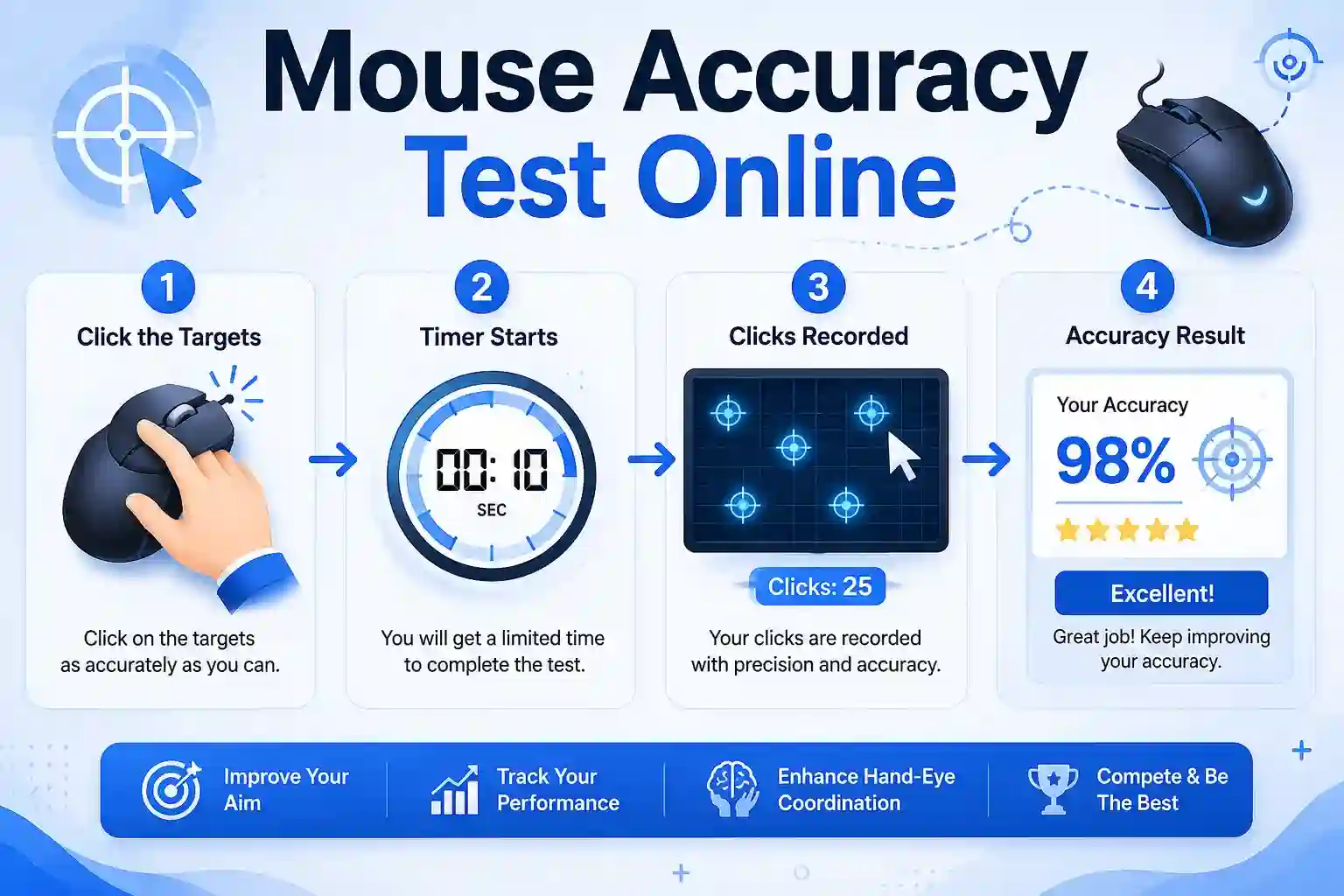
- mouseaccuracy Popular browser-based target clicking trainer.
- Aim Lab, KovaaK’s, or 3D Aim Trainer (for gamers).
- Online tests for tracking, flicking, and click precision.
Types of Tests:
- Tracking tests (follow paths smoothly)
- Flick tests (quick target acquisition)
- Click accuracy (hit center of shrinking targets)
- Sensor tests (check for jitter or deviation)
Step-by-Step Guide: How to Improve Mouse Accuracy
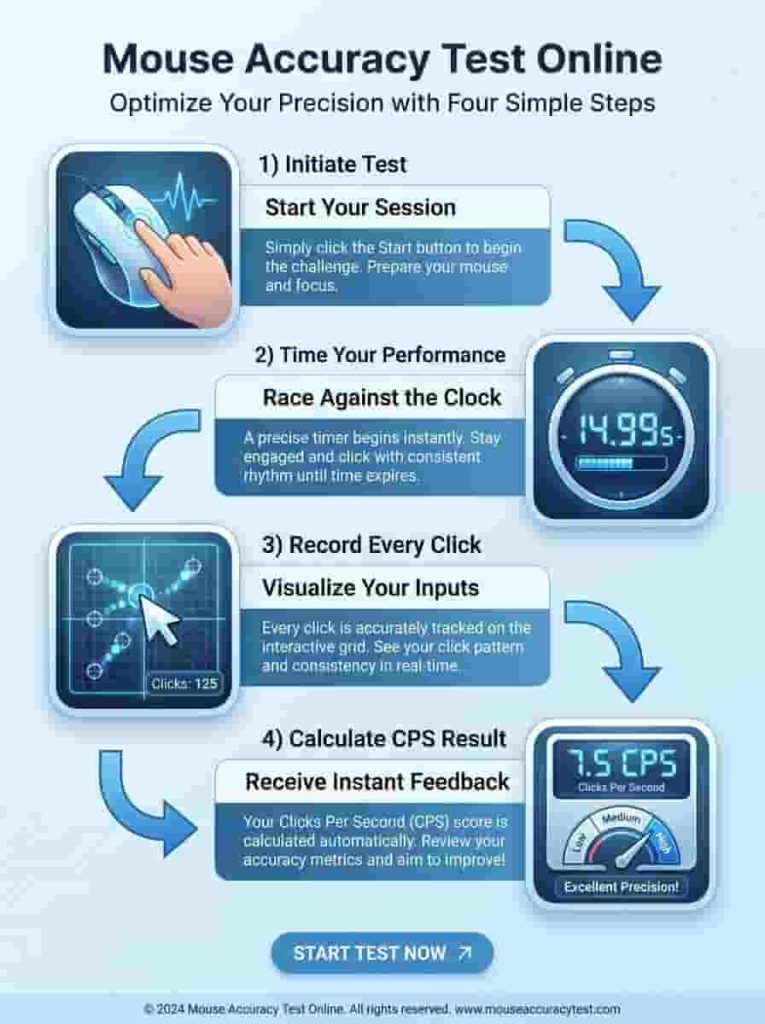
Optimize Windows Settings Go to Settings → Devices → Mouse → Turn OFF “Enhance Pointer Precision.” Choose the Right DPI Start at 800 CPI and adjust based on your monitor resolution and game sensitivity. Most users perform best between 400–1600. Select Quality Hardware Invest in a mouse with a top-tier sensor and a suitable mousepad. Clean Your Mouse Regularly clean the sensor and feet to remove dust and debris. Practice Daily Spend 10–15 minutes on mouseaccuracy.com or an aim trainer. Refine Technique Use arm movements for larger motions, relax your grip, and maintain good posture. Advanced Tweaks Use Raw Input in games, test different polling rates, and calibrate lift-off distance if your mouse allows it.
Benefits of Better Mouse Accuracy
Improved aiming and performance in games Reduced fatigue during long work sessions More precise editing and design work Greater overall confidence with your computer
Common Mistakes and Myths
Believing higher DPI = higher accuracy Using mouse acceleration Playing on uneven or dirty surfaces Gripping the mouse too tightly Ignoring regular cleaning and maintenance
Best Practices for Maximum Precision
Maintain consistent sensitivity across all applications and games. Update your mouse firmware and drivers. Use a large, quality mousepad. Practice with purpose — focus on control rather than speed initially. Test different grip styles to find what feels most natural.
Comparison Table Key Factors
| Factor | Impact on Accuracy | Recommendation |
|---|---|---|
| Sensor | Very High | PixArt flagship or equivalent |
| Mousepad | High | Quality cloth or hybrid |
| DPI Setting | Medium | 400–1600 for most users |
| Polling Rate | Medium | 1000Hz minimum, 4K/8K for competitive |
| Grip & Posture | High | Experiment with arm aiming |
| Surface Cleanliness | High | Clean regularly |
FAQ
Conclusion
Mouse accuracy is a combination of good hardware, proper settings, and practiced technique. By understanding the difference between sensitivity and true precision, testing regularly, and following the steps above, you can achieve excellent cursor control for gaming or professional work.
Final Tip: Focus on consistency over speed. Master control first, and accuracy will follow naturally.
Start improving today try a quick session on mouseaccuracy.com and feel the difference!